Dume for Chrome: Beginner Guide to Faster Browser Work

An all-in-one AI companion that summarizes pages, drafts replies, and automates your browser research instantly. Dume for Chrome Overview Dume for Chrome helps you work faster without switching tabs. It can read the page you are on, summarize information, draft messages, and help with research in real time. If this is your first AI browser extension, this guide gives you a simple path from install to real daily use.
Best results come from clear instructions like: “Summarize this page in 5 bullet points for a beginner.”

Why Use Dume for Chrome

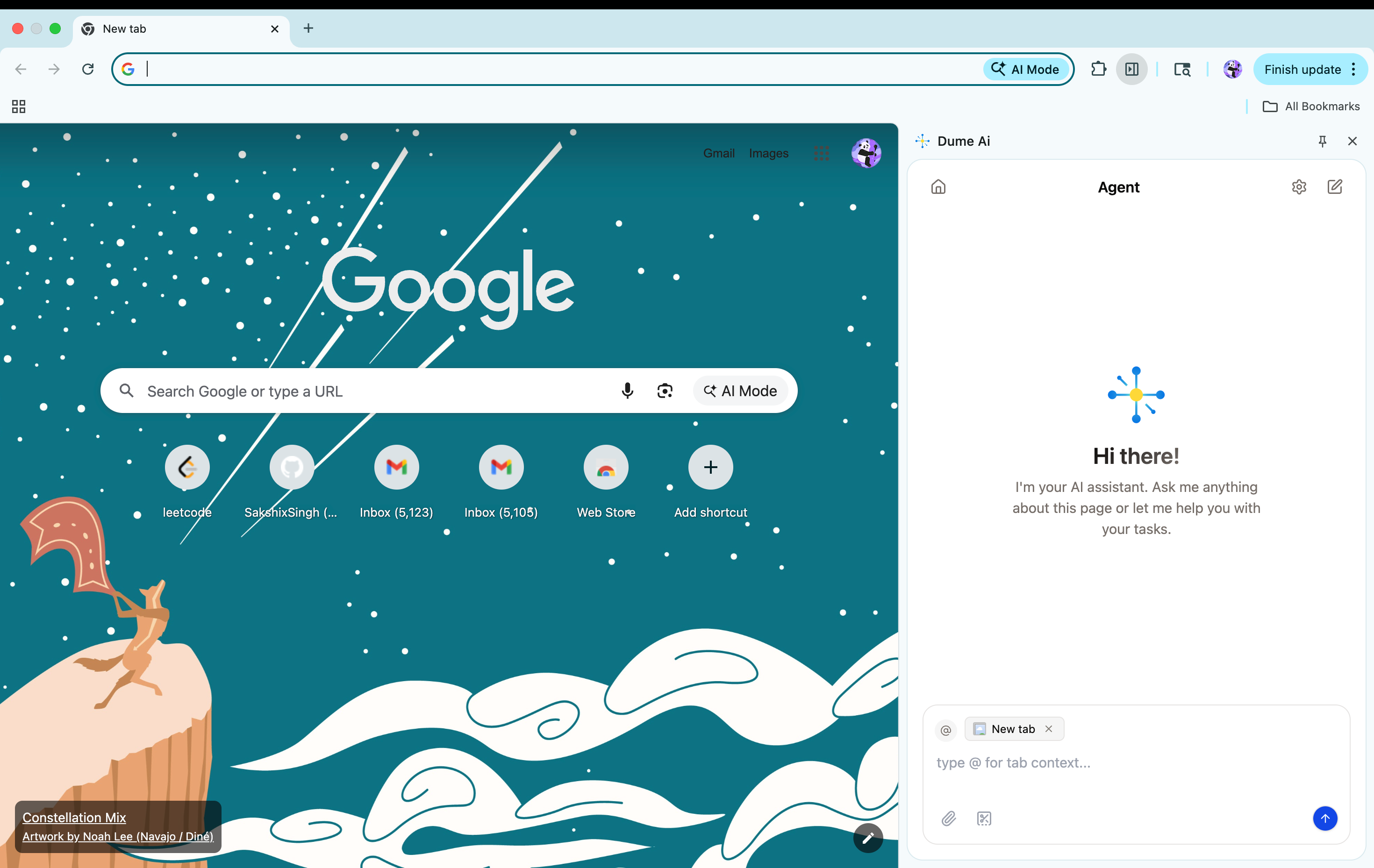
Dume for Chrome is an AI browser assistant that understands your current tab and helps you:
  • Summarize articles, docs, and reports quickly
  • Draft responses in tools like Gmail
  • Extract structured data from websites
  • Ask questions about the page you are viewing
  • Keep research and notes organized with less effort

Context-Aware Help

Ask questions about the exact page you are currently viewing.

Quick Summaries

Turn long pages into short, useful takeaways in seconds.

Smart Tab Grouping

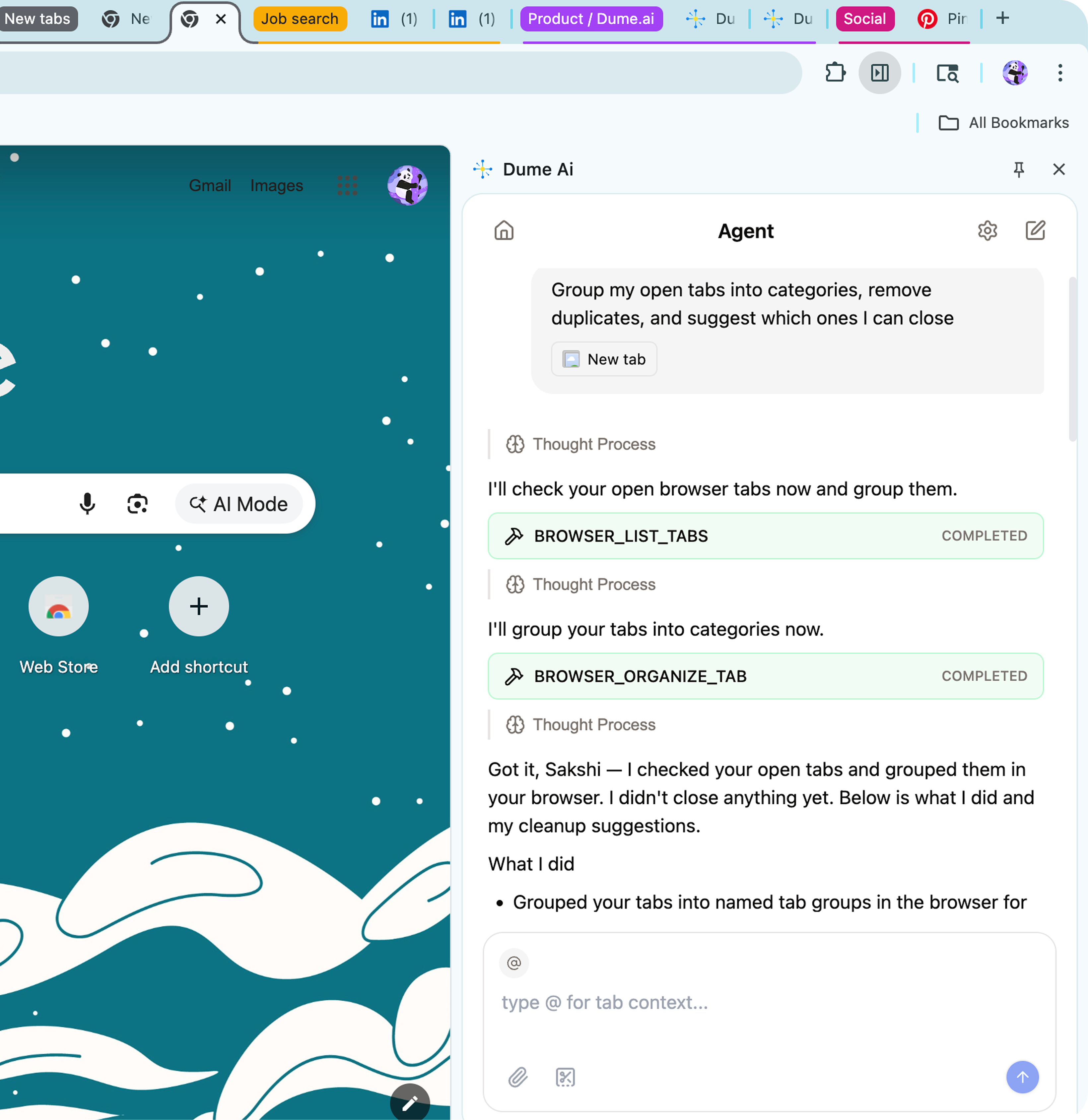
Automatically organize and group related tabs to clear browser clutter.

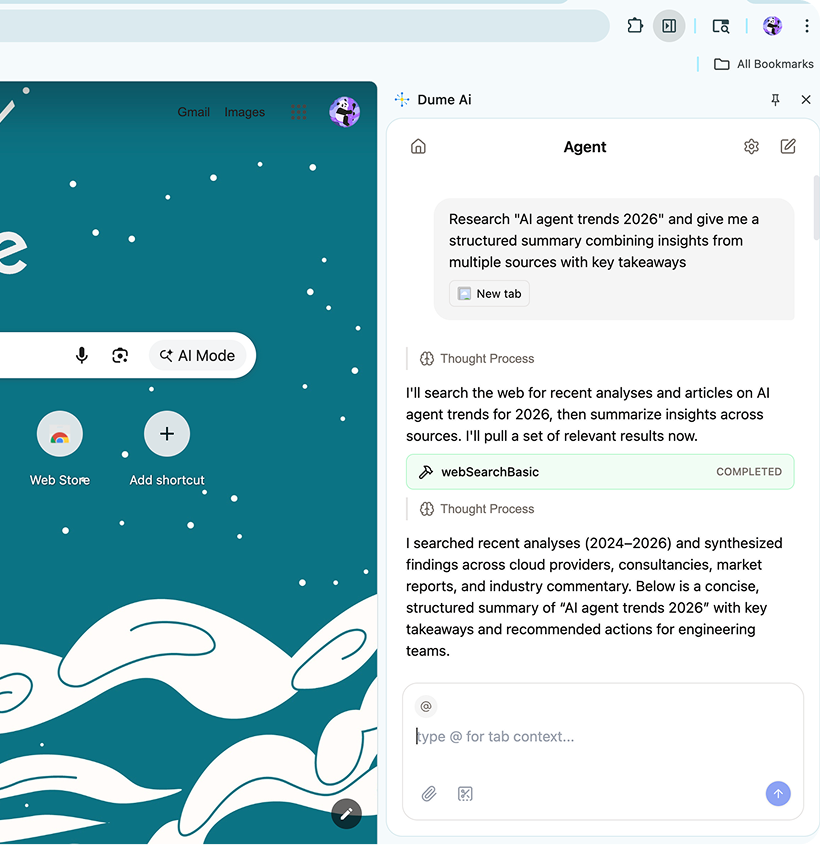
Deep Research

Analyze information across 10+ sources simultaneously for deeper insights.

Usecases

Ask Dume to explain, summarize, or answer questions about the active tab.
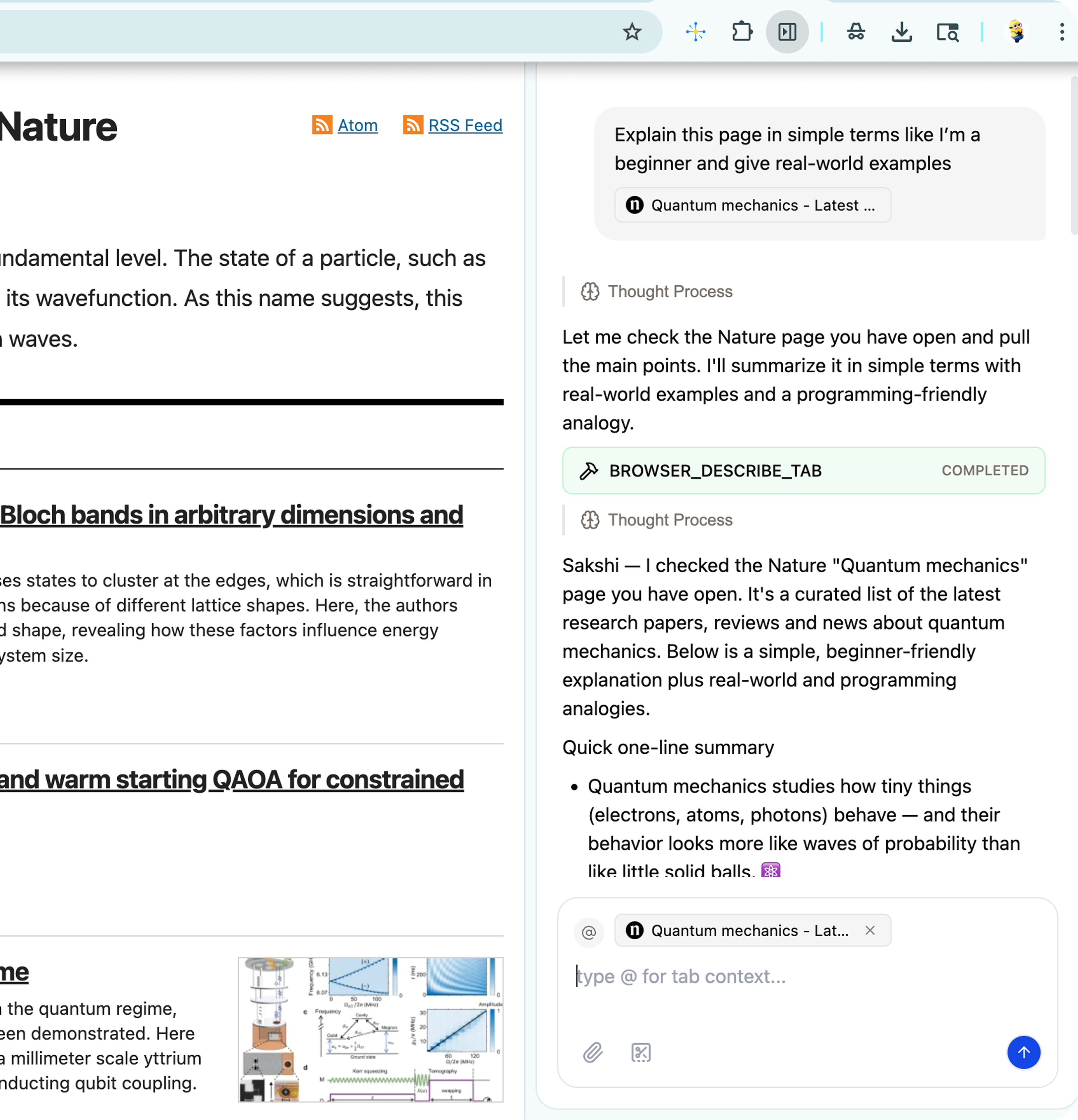
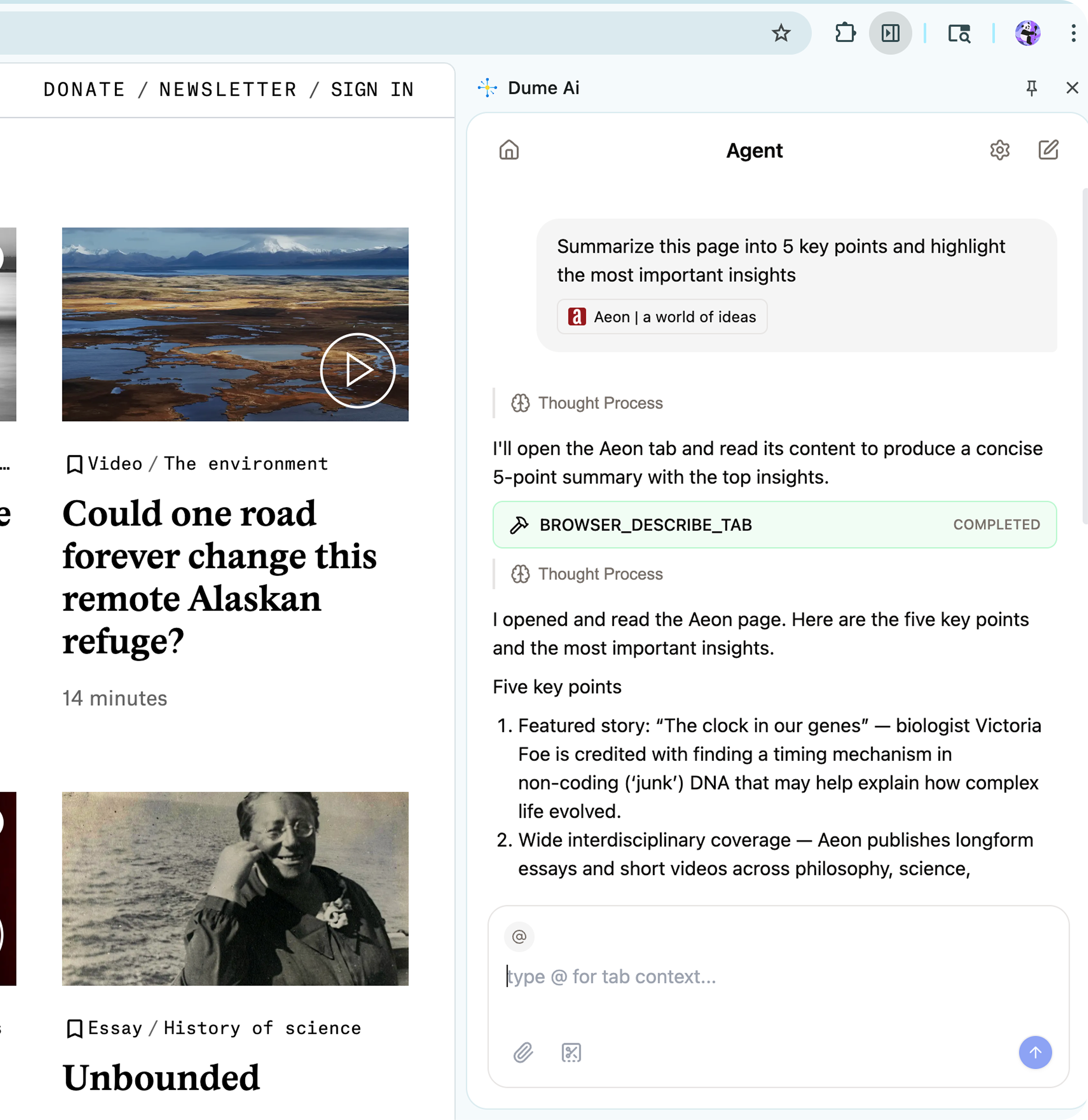
Explain the main argument of this article in 3 simple bullet points.

Quick Start in 4 Steps

1

Install the extension

Open the Chrome Web Store, find Dume for Chrome, and click Add to Chrome.
2

Pin for one-click access

Click the Chrome extensions puzzle icon and pin Dume so it is always visible.
3

Sign up or log in

Open the extension popup and authenticate using Google, or email.
4

Run your first task

Open any long page and ask: “Summarize this in 5 beginner-friendly bullets.”

Why pinning matters

Pinning keeps Dume visible in your toolbar so you can open it in one click on any site.

First 5 Minutes Workflow

Use this quick routine to get immediate value:
1

Open a page

Open any article, report, or documentation page in your browser.
2

Open Dume

Open the Dume sidebar from the toolbar or use the keyboard shortcut.
3

Ask for a summary

Request a short summary or key takeaways to quickly understand the core message.
4

Ask follow-up questions

Dive deeper by asking specific questions about the content on the page.
5

Save or copy

Save the insights or copy the output directly to your notes or workflow tool.

Beginner Use Cases

Research faster

  • Summarize company pages
  • Pull key points from long blog posts
  • Compare information across tabs

Email support

  • Draft reply options in Gmail
  • Rewrite for clarity or tone
  • Create concise follow-up messages

Content and documentation

  • Simplify technical docs
  • Turn notes into action lists
  • Extract facts for reports
For best quality, include audience and format in your prompt (example: “for non-technical stakeholders”, “as a table”, “in 5 bullets”).

Best Prompts for Beginners

Copy and try these:
GoalPrompt to Use
Manage Tabs”Group all my open tabs related to travel planning and suggest which ones to close.”
Deep Research”Research the top 10 articles on this topic and summarize the key similarities and differences.”
Understand quickly”Explain this page in simple terms as if I am new to this topic.”
Quick Comparison”Compare the features listed across my 5 open product tabs in a table.”
Action plan”Create a 3-step action plan based on this page.”

Keyboard Shortcut

You can open the Dume sidebar instantly:
  • Mac: Cmd + Shift + D
  • Windows: Ctrl + Shift + D
You can also customize this in chrome://extensions/shortcuts.

Frequently Asked Questions

Try refreshing the current tab. Also, ensure the extension is pinned for easy access and that there are no conflicting extensions active.
Open the extension popup and sign in again using the same method (Google or email) that you use for the Dume web app.
Some complex site layouts load slowly; try refreshing the page once. Also, ensure the page is fully loaded before opening the Dume sidebar.
Pro Tip: Start with simple summary prompts first to get a feel for the AI’s logic. Once you trust the outputs, move to advanced tasks like data extraction and drafting.

Why Teams Keep It Enabled

Dume helps reduce context switching, speeds up research, and improves everyday browser productivity. It is especially useful for operations, marketing, sales, support, and product teams that spend a lot of time in web-based tools.