> ## Documentation Index
> Fetch the complete documentation index at: https://docs.dume.ai/llms.txt
> Use this file to discover all available pages before exploring further.
# Tool Node
> The Tool Node enables execution of integrated tools and external services within Dume AI workflows. Bridge AI-powered logic with actionable APIs, platform integrations, and backend utilities.
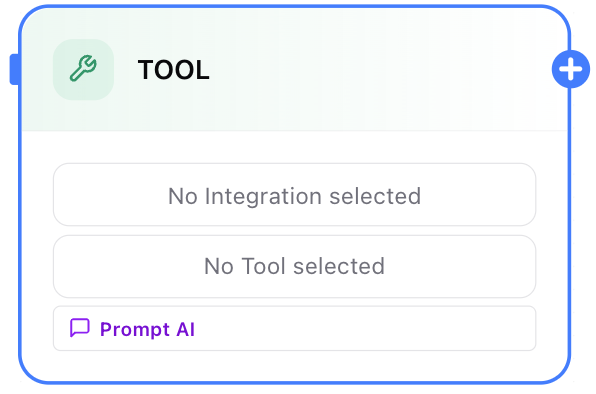
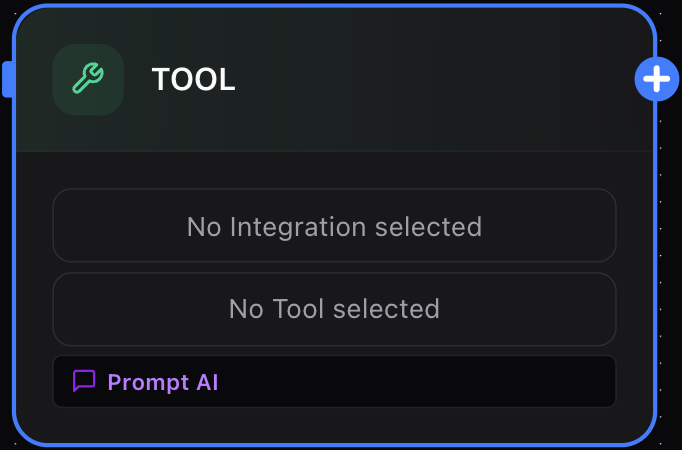 Tools Node support MCP tools too. For more on how to link MCP tools please checkout this [guide.](/mcp_server)
## What Can the Tool Node Do?
* Invoke authenticated platform integrations (e.g., LinkedIn, Slack, CRM systems).
* Automate business operations by triggering third-party services via MCP servers.
* Chain external tool responses into broader AI workflows for further processing.
* Seamlessly extract and utilize output data from any tool for downstream workflow steps.
Tools Node support MCP tools too. For more on how to link MCP tools please checkout this [guide.](/mcp_server)
## What Can the Tool Node Do?
* Invoke authenticated platform integrations (e.g., LinkedIn, Slack, CRM systems).
* Automate business operations by triggering third-party services via MCP servers.
* Chain external tool responses into broader AI workflows for further processing.
* Seamlessly extract and utilize output data from any tool for downstream workflow steps.
 ## How the Tool Node Works
When placed in a workflow, the Tool Node:
1. Accepts data from earlier nodes (e.g., input, LLM, condition).
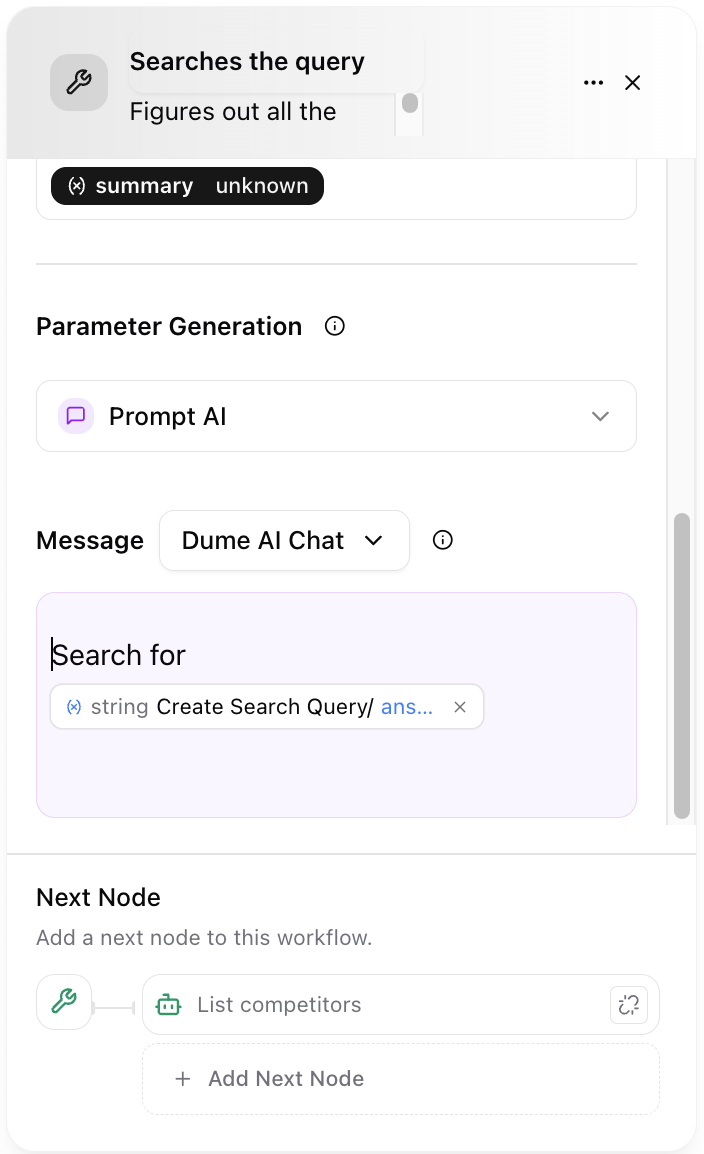
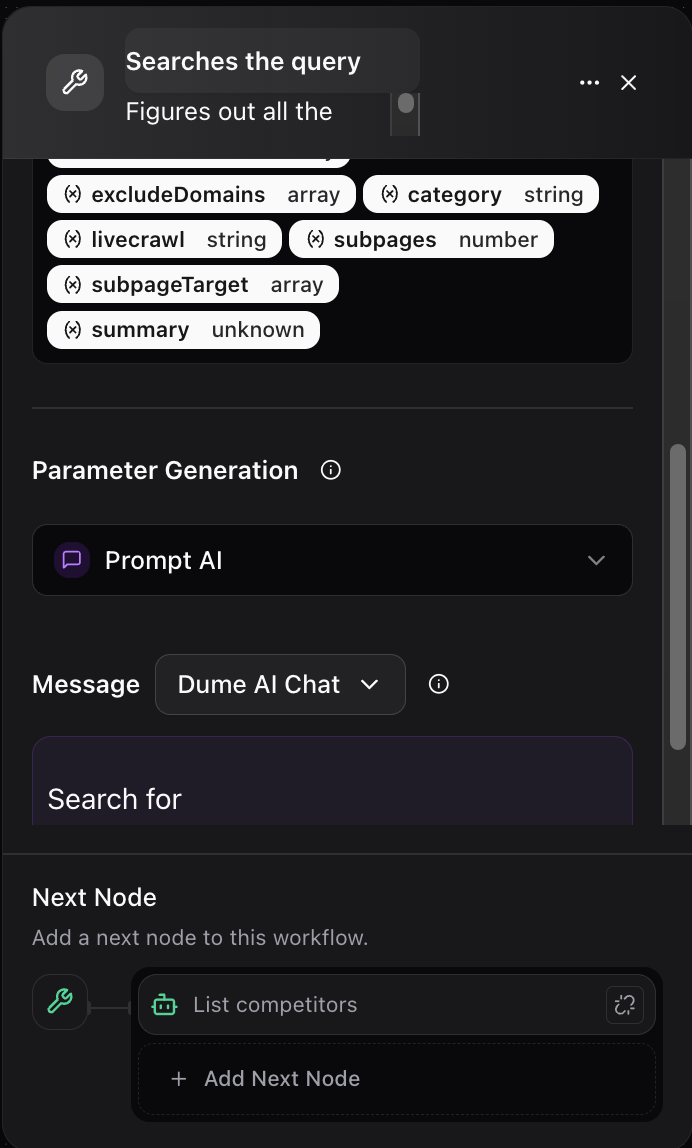
2. Uses LLM-generated instructions—or explicit user guidance—to dynamically fill the parameters required by the chosen tool.
3. Executes the tool or integration.
4. Returns the output for use in next nodes (conditionals, templates, outputs, etc.).
## Configuring the Tool Node
## How the Tool Node Works
When placed in a workflow, the Tool Node:
1. Accepts data from earlier nodes (e.g., input, LLM, condition).
2. Uses LLM-generated instructions—or explicit user guidance—to dynamically fill the parameters required by the chosen tool.
3. Executes the tool or integration.
4. Returns the output for use in next nodes (conditionals, templates, outputs, etc.).
## Configuring the Tool Node
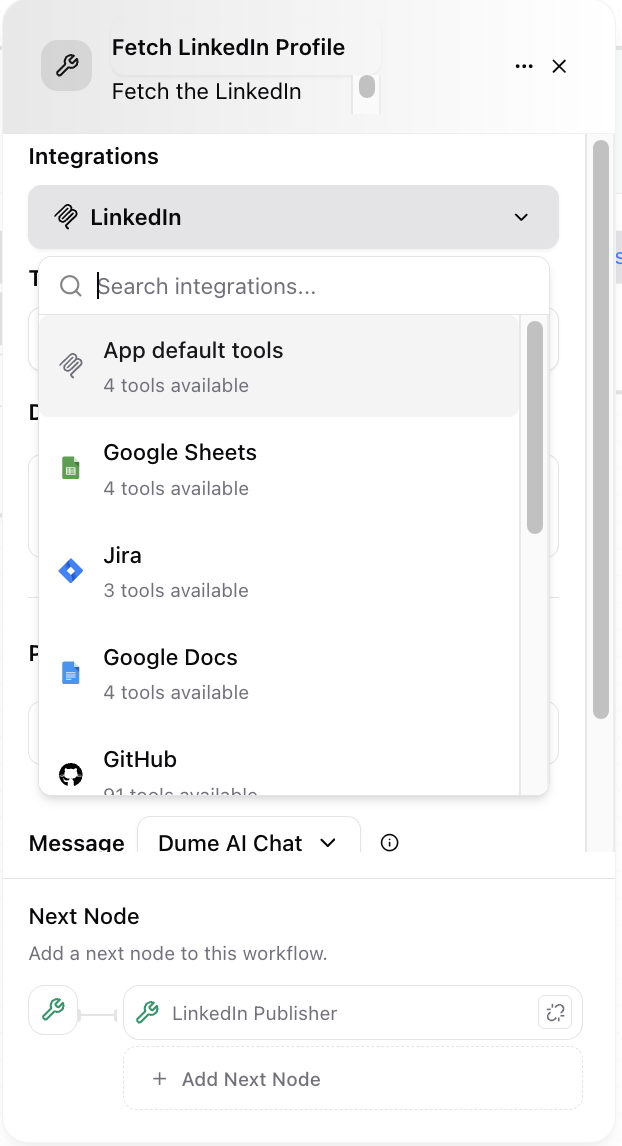
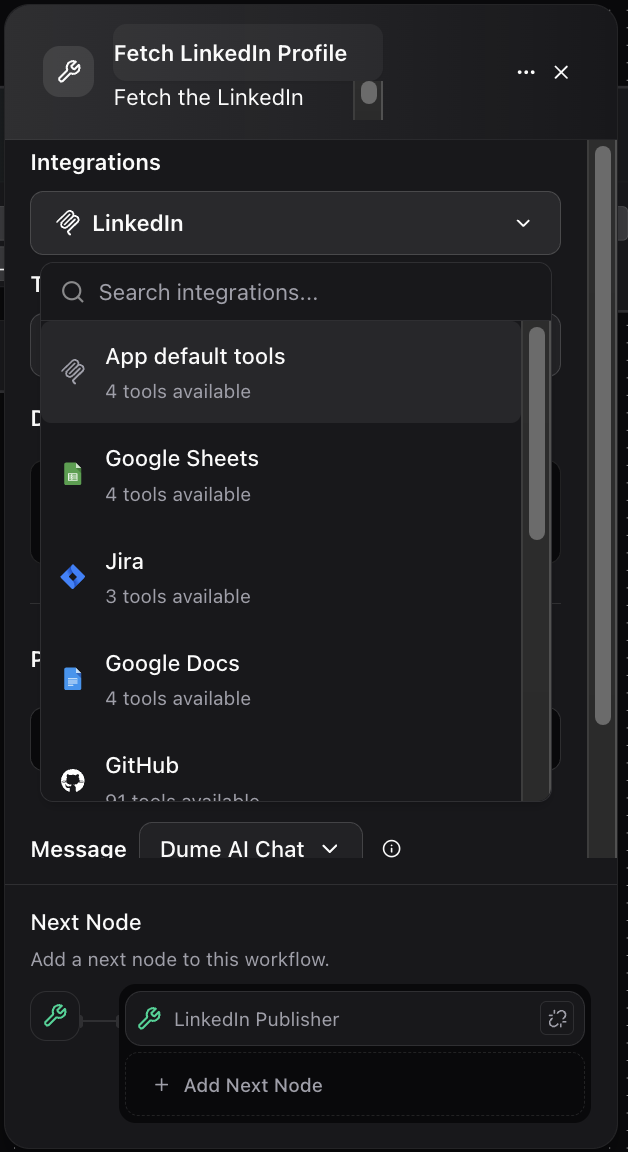
 ## 1. Select an Integration
Choose from available integrated platforms or custom tools. For example, you might select:
* LinkedIn (fetch profile, publish posts)
* Email providers (send mail, check status)
* Project management tools (create task, update ticket)
* Custom integrated MCP servers.
## 1. Select an Integration
Choose from available integrated platforms or custom tools. For example, you might select:
* LinkedIn (fetch profile, publish posts)
* Email providers (send mail, check status)
* Project management tools (create task, update ticket)
* Custom integrated MCP servers.
 ## 2. Choose the Tool or Action
Each integration has a set of supported tools (actions). Select the appropriate one based on your automation goal.
## 2. Choose the Tool or Action
Each integration has a set of supported tools (actions). Select the appropriate one based on your automation goal.
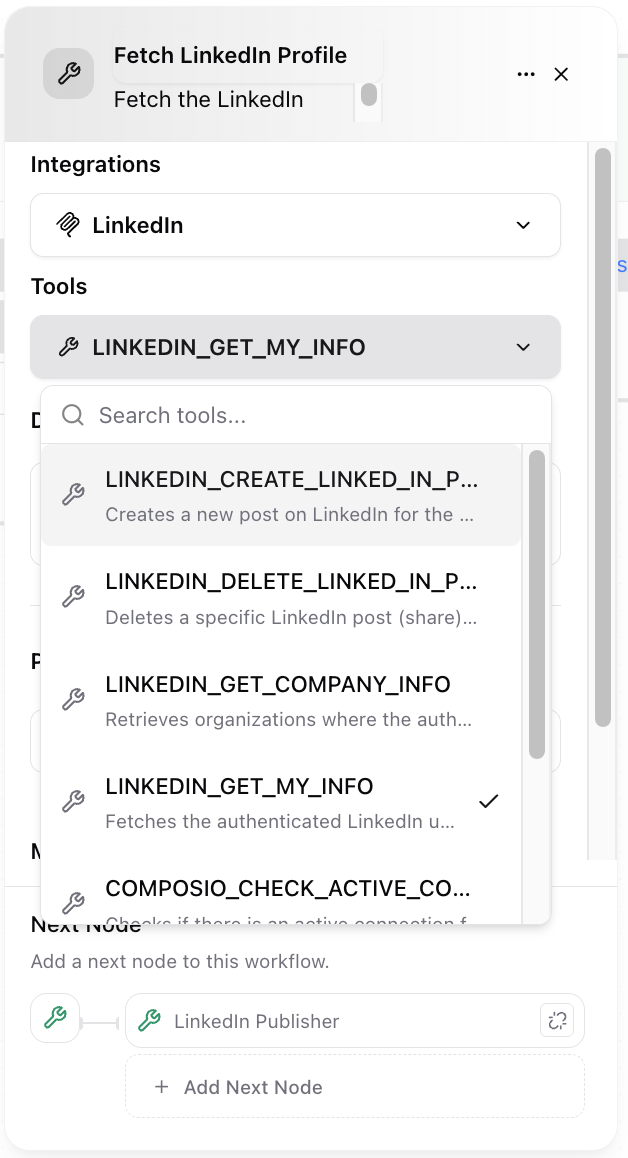
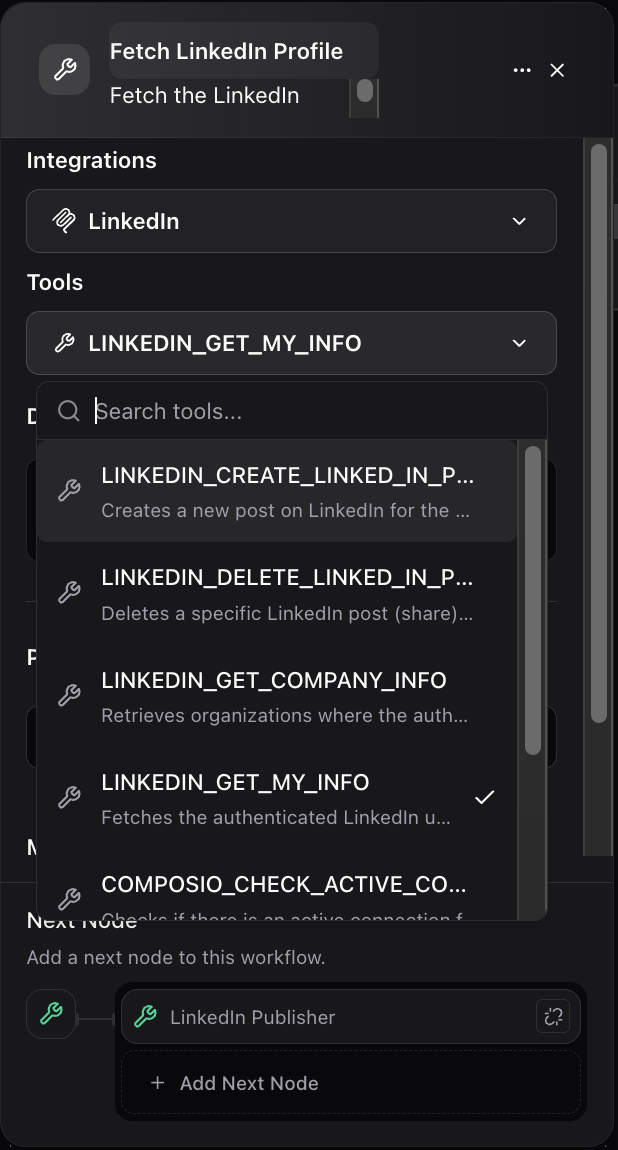 * Example: For LinkedIn, options might include "Get Profile Info" or "Publish Article".
## 3. Configure the Message or Parameters
Define how input data is mapped to the tool’s required fields. Utilize references from prior workflow nodes to build smart, context-driven requests.
* Example: For LinkedIn, options might include "Get Profile Info" or "Publish Article".
## 3. Configure the Message or Parameters
Define how input data is mapped to the tool’s required fields. Utilize references from prior workflow nodes to build smart, context-driven requests.
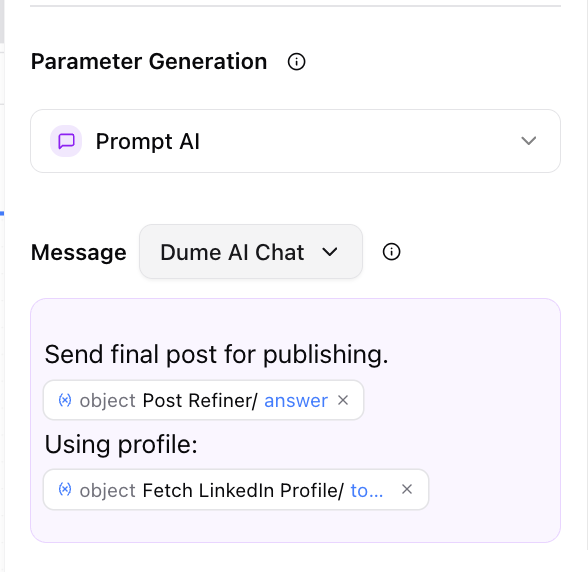
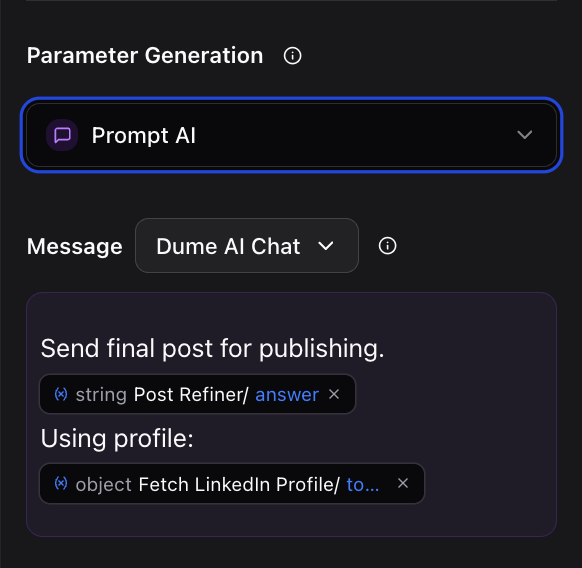 * Example: Use `{string INPUT/username}` as an input to fetch a specific user profile.
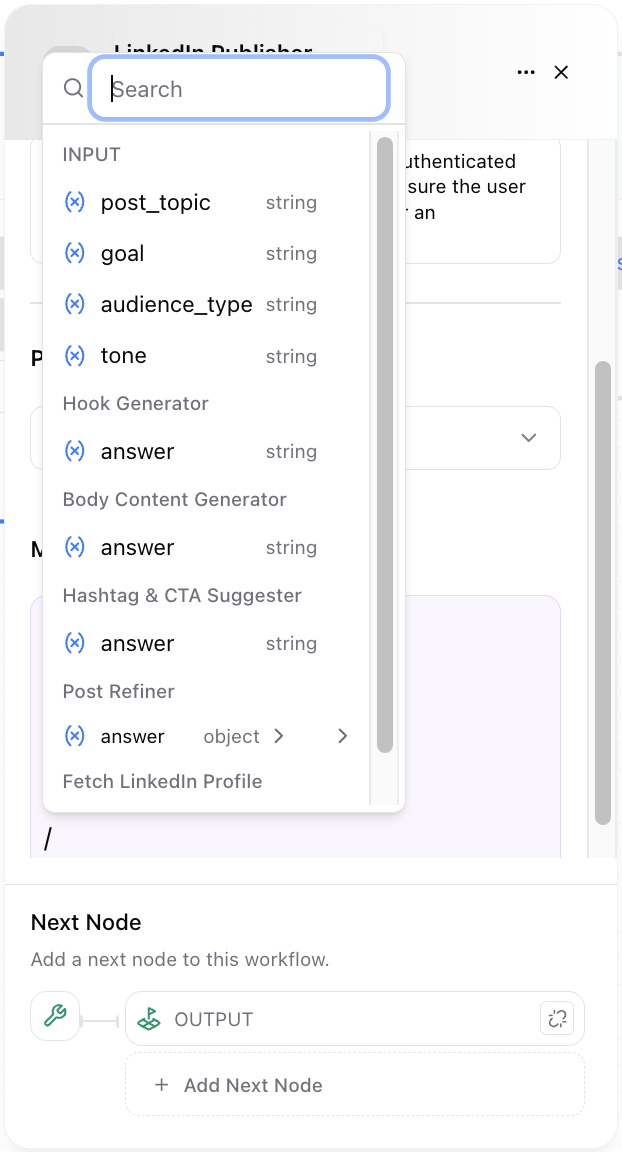
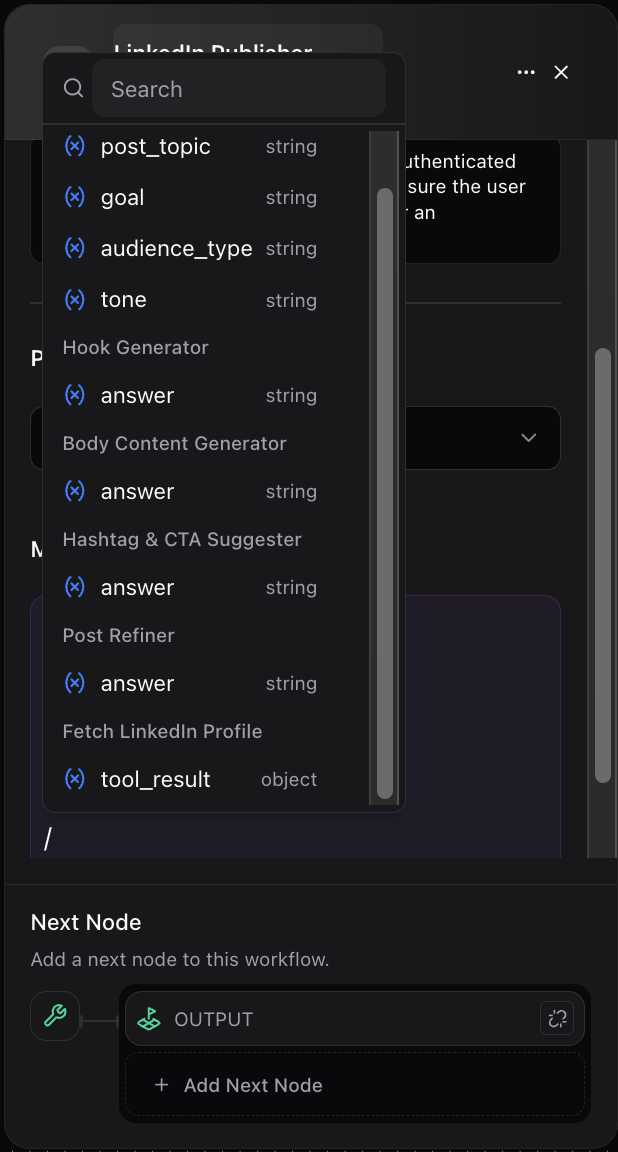
## 4. Output Mapping
Start with **/** to use the output of the tool node in next workflow.
* Example: Use `{string INPUT/username}` as an input to fetch a specific user profile.
## 4. Output Mapping
Start with **/** to use the output of the tool node in next workflow.
 ## Example: Fetching a LinkedIn Profile
**Scenario:** Automate the retrieval of the current LinkedIn user’s profile as part of a personalized onboarding sequence.
**Workflow Steps:**
1. **Input Node:** Collects authentication data or triggers.
2. **Tool Node Configuration:**
* **Integration:** LinkedIn
* **Tool:** "Fetch Profile"
* **Parameters:** Uses authenticated context; no manual user input required.
* **Message:** "Fetch the current my LinkedIn profile"
3. **Next Steps:** The output (profile info) is sent to an Output or Template Node for display or further action.
**Practical Use Cases:**
* Combine Tool Node with LLM results to auto-publish AI-generated articles to platforms.
* Validate or enrich user data with third-party sources.
* Automate workflow steps that require external verification, computation, or orchestration.
## Best Practices
* **Reference Variables:** Always map tool parameters to relevant workflow data for dynamic execution.
* **Chain Actions:** Use tool outputs as triggers for subsequent AI or process steps.
* **Handle Errors:** Combine with Condition Nodes to manage scenarios where external tools return unexpected results.
* **Document Integration Logic:** Leverage Note Nodes for clarity on integration choices and parameter mapping.
## Advanced Tips
* Combine multiple Tool Nodes to orchestrate multi-step, cross-platform operations.
* Use in iterative (Loop) patterns for batch processing or list-based data management.
* Integrate with code or HTTP nodes to preprocess data before passing it to tools.
## Summary
The Tool Node supercharges your Dume AI workflows with real-world actionability—making it possible to not just process and generate data, but to **move, fetch, update, and publish** information automatically wherever your business needs it.
## Example: Fetching a LinkedIn Profile
**Scenario:** Automate the retrieval of the current LinkedIn user’s profile as part of a personalized onboarding sequence.
**Workflow Steps:**
1. **Input Node:** Collects authentication data or triggers.
2. **Tool Node Configuration:**
* **Integration:** LinkedIn
* **Tool:** "Fetch Profile"
* **Parameters:** Uses authenticated context; no manual user input required.
* **Message:** "Fetch the current my LinkedIn profile"
3. **Next Steps:** The output (profile info) is sent to an Output or Template Node for display or further action.
**Practical Use Cases:**
* Combine Tool Node with LLM results to auto-publish AI-generated articles to platforms.
* Validate or enrich user data with third-party sources.
* Automate workflow steps that require external verification, computation, or orchestration.
## Best Practices
* **Reference Variables:** Always map tool parameters to relevant workflow data for dynamic execution.
* **Chain Actions:** Use tool outputs as triggers for subsequent AI or process steps.
* **Handle Errors:** Combine with Condition Nodes to manage scenarios where external tools return unexpected results.
* **Document Integration Logic:** Leverage Note Nodes for clarity on integration choices and parameter mapping.
## Advanced Tips
* Combine multiple Tool Nodes to orchestrate multi-step, cross-platform operations.
* Use in iterative (Loop) patterns for batch processing or list-based data management.
* Integrate with code or HTTP nodes to preprocess data before passing it to tools.
## Summary
The Tool Node supercharges your Dume AI workflows with real-world actionability—making it possible to not just process and generate data, but to **move, fetch, update, and publish** information automatically wherever your business needs it.