> ## Documentation Index
> Fetch the complete documentation index at: https://docs.dume.ai/llms.txt
> Use this file to discover all available pages before exploring further.
# MCP Servers
> Dume.ai supports seamless integration of remote MCP (Model Context Protocol) servers with just a few clicks. Extend AI capabilities and connect external systems effortlessly.
## What is MCP server?
An MCP server implements the Model Context Protocol, acting as a middleware that offers tools, data, and prompts to AI models via a standardized interface. It handles context management, tool discovery, and state persistence—enabling AI agents to connect seamlessly with external systems and maintain multi‑turn interactions.
## Popular remote MCP servers
You can use [https://mcp.composio.dev/dashboard](https://mcp.composio.dev/dashboard) for remote MCP servers
## Use Notion to store all the details from your conversations in the Dume app. It can also fetch any document from Notion and add it as additional context to the discussion.
You’ll thank the Lord after using Figma MCP in your Dume ai. You can code any Figma design files. It will definitely make your life easier as a developer.
## Supabase for managing the database from Dume. This is yet another popular use case of MCP servers. You can connect Dume.ai with your Supabase database.
Blender MCP is the hottest thing right now. You can connect Dume AI to this and interactively build 3d renders just by prompting it.
## How to add an MCP server on Dume.ai
Select MCP server on left.
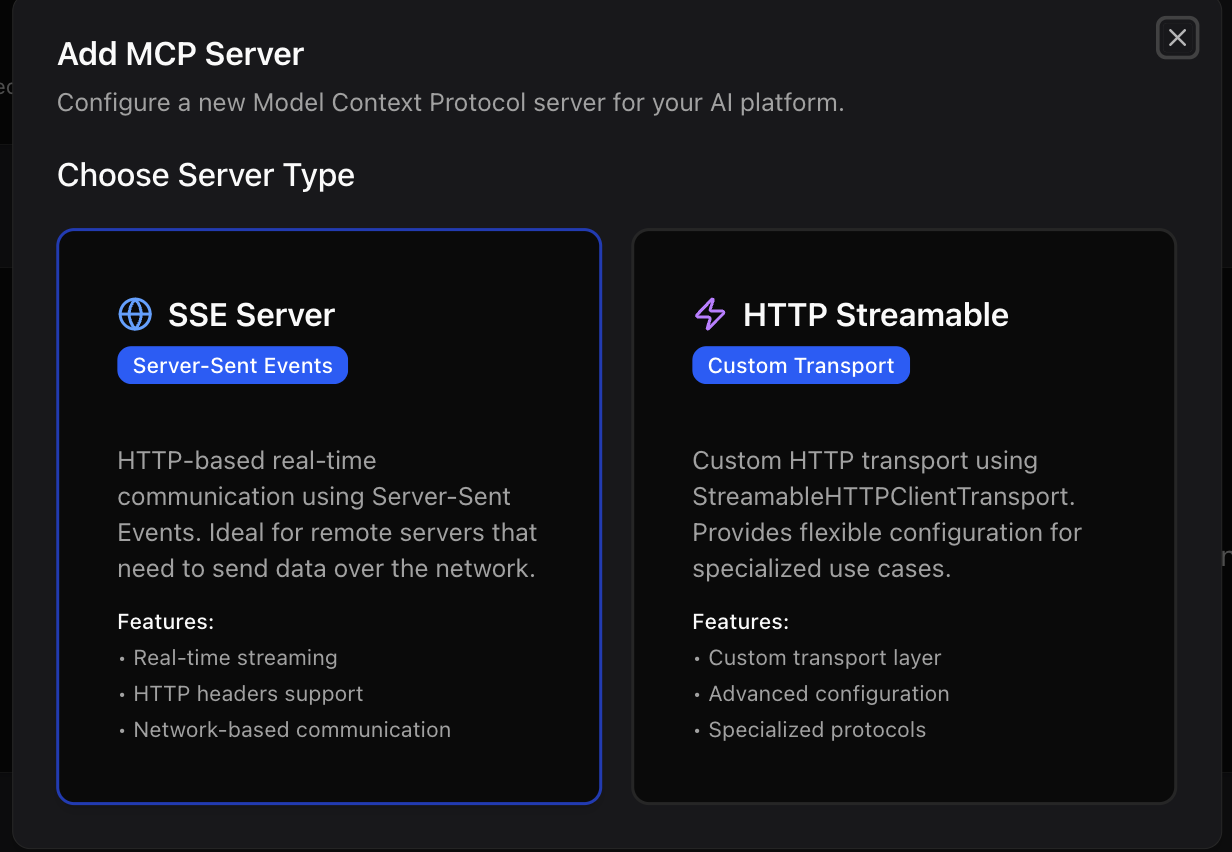
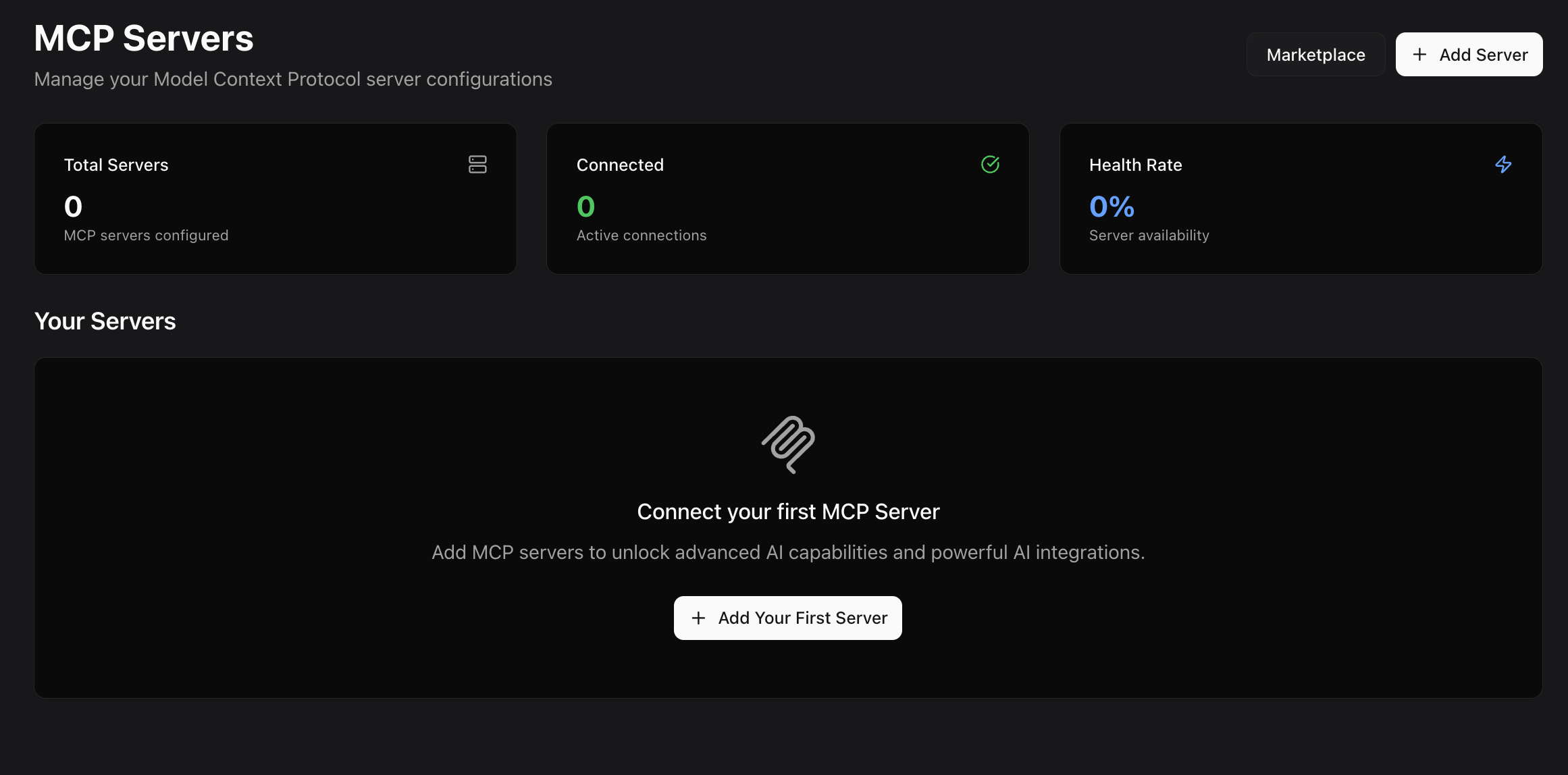 Select whether your MCP server is SSE or HTTP server.
 Enter the MCP server name, Server URL and a brief description about the MPC server.
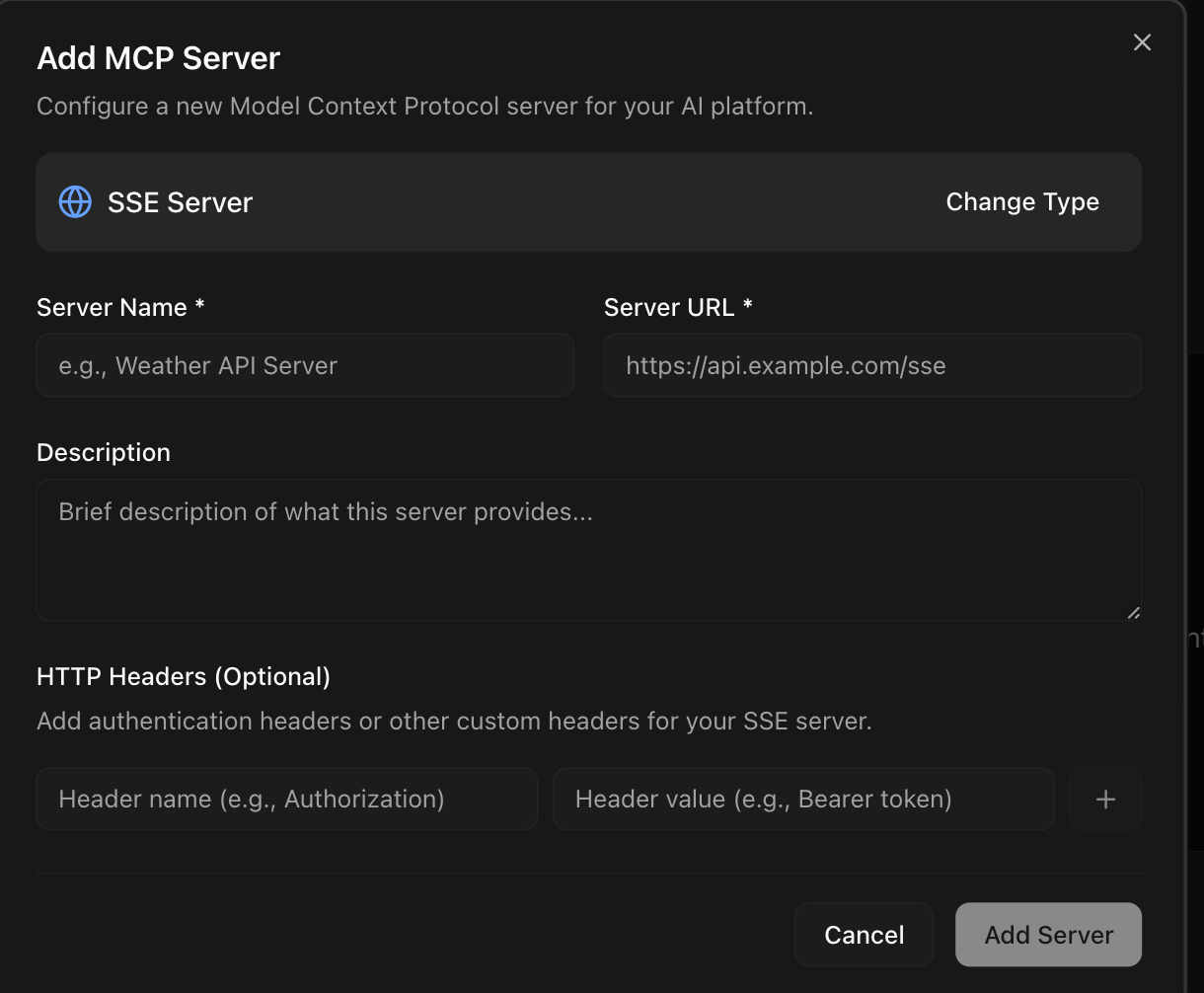 Click Add Server and wait for [Dume.ai](http://Dume.ai) to connect to the server. Once added, Dume ai will call the MCP server automatically whenever required.
Once connected, you can test the MCP servers and it should show the MCP server as connected.
Click Add Server and wait for [Dume.ai](http://Dume.ai) to connect to the server. Once added, Dume ai will call the MCP server automatically whenever required.
Once connected, you can test the MCP servers and it should show the MCP server as connected.
 You can also click on view view tools to see the supported tools the MCP server supports.
 Clicking on view tools will show you the dialog with the list of tools supported by the MCP server. Go through the tools and it'll help you understand the strengths and limitations of the MCP server.

 Once connected, you can easily ask the MCP server for any request directly from chat.\
**Example**- Can you write a linkdIn post on how MCP servers with AI are great for crypto startups.
Once connected, you can easily ask the MCP server for any request directly from chat.\
**Example**- Can you write a linkdIn post on how MCP servers with AI are great for crypto startups.
